Choose your camera.
Test your setup.
The native EXE includes webcam capture and the tethering connector. Select a camera in the app and run a test before an event. Camera capabilities depend on your exact model and driver.
Sony cameras and PC Remote
Choose PC Remote over USB on your camera and close other tethering apps. In Camera Setup select Sony camera · Official SDK, then choose your camera and complete the test photo. Version 2.46.12 accepts compatible PC + card and RAW + JPEG transfer settings. For an affected camera, export a report from Troubleshoot Connection.
Nikon cameras: official SDK capture and live preview
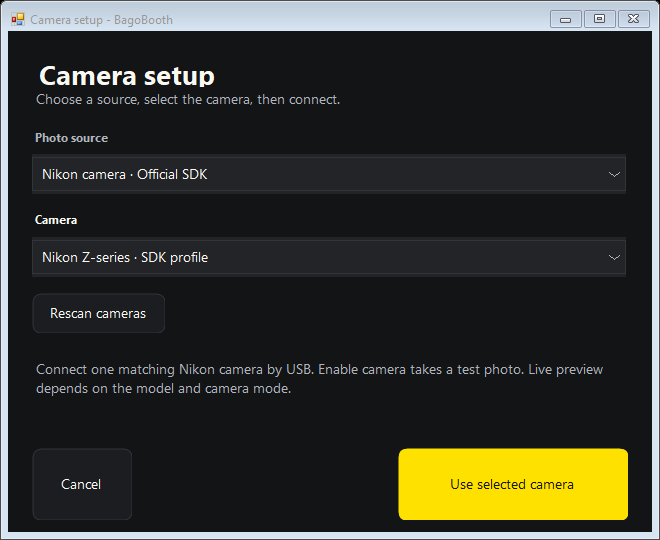
- Connect one matching Nikon camera by USB, turn it on, choose JPEG or RAW+JPEG and close other tethering software.
- Open Camera settings → Devices & camera → Nikon camera · Official SDK.
- Select the USB model match when offered, or choose the profile for your camera. For newer Z cameras, choose Nikon Z-series. The test photo verifies that the selected profile can transfer a JPEG.
- Choose Use selected camera, accept the Nikon runtime terms on first use, and complete the test photo.
- Use Photo mode. Live preview appears when the model and camera mode support it. Motion modes require a webcam or capture card.
The app includes 40 classic x64 model profiles plus the unified Z-series SDK. No external driver application is required for this source. Each model uses a separate helper and verified runtime files.
No physical camera model is hardware-verified. All 41 official SDK profiles passed initialization checks; simulated transport tests cover preview and capture handling. Physical shutter, transfer, live view and USB reconnect must still be tested with your camera. Older x86-only D40/D60/D80/D200 SDKs are excluded. Included SDK profile list
Direct USB camera · Windows PTP
- Connect the camera in its PTP/MTP USB mode if available and choose JPEG or RAW+JPEG.
- Open Camera settings → Devices & camera → Direct USB camera · Windows PTP.
- Select the camera and choose Use selected camera. A successful test photo is required.
- Use Photo mode. The app triggers the supported camera after each countdown and downloads the new image.
This connection uses the Windows driver and does not require digiCamControl. It supports still photos, with no continuous DSLR live preview or motion modes. Models whose Windows driver does not expose shutter control need another source. No physical model is verified yet. This Windows PTP source has no live preview. For a supported Nikon or Sony camera, use the matching official SDK source in Camera Setup.
Webcam or USB capture card
- In Windows camera privacy settings, enable camera access for desktop apps.
- In BagoBooth, open Open booth → Camera settings → Devices & camera.
- Choose Webcam / USB capture card, then wait for the automatic scan. Use Rescan cameras after connecting a device.
- Select the camera and a supported capture format. Choose Use selected camera.
- Check the live preview. Use Enable camera if you need to reconnect.
A camera may appear through more than one Windows interface. If one fails, try another interface or format for that camera. Close other applications that may be holding it. Mirror affects the preview; saved photo prints are not mirrored.
Tethered camera through digiCamControl
- Check the exact model in the digiCamControl camera list ↗, then install digiCamControl ↗.
- Connect the camera, choose JPEG or RAW+JPEG on the camera, and open digiCamControl. Confirm that the camera is listed there.
- In BagoBooth's Devices & camera dialog, choose Tethered camera · digiCamControl, scan, select the camera, and choose Use selected camera.
- The app takes a real test photo. Check for Camera test passed. Use Enable camera to repeat the test after a restart or device change.
- Start a still-photo session. Original DSLR files are saved in the native studio's Originals folder; composed prints are in Photos.
No Node.js camera bridge or driver web server is needed. Use Open camera driver to launch a standard digiCamControl installation. Discovery alone does not verify shutter control.
Photo folder from other camera software
Choose Photo folder · external camera software and Choose photo folder. Select the folder where your camera software writes new JPEG/PNG files, then choose Use selected camera.
During the test, trigger a new shot using the external camera software. BagoBooth waits for the completed file. During sessions, trigger each shot after the countdown. Existing unchanged pictures and RAW-only files are not used.
Folder mode does not press the shutter. Cancel capture stops a pending folder wait; a driver operation may finish before cancellation takes effect.
Roaming photographer / Wi-Fi transfer
Use the separate Photoman page to receive photos continuously without starting booth countdowns. Your camera transfer software must save JPEG/PNG files into the selected PC folder. Choose the event, choose the folder, then Start receiving. Photoman instructions →
Preview, GIFs and video
The tethering connector captures still photos. Live preview, animated GIF, boomerang, video and Flipbook use a compatible webcam or capture-card feed. Native video is a seven-second silent MJPEG AVI; microphone audio is not included in this release.
Native Windows printing
After capturing a photo, choose Print photo or Print preview. Windows paper setup opens first: select the printer's supported 2×6 or 4×6 paper size, margins and orientation, then continue to the printer dialog or preview.
The native app prints directly through Windows; it does not need the old browser printer bridge. Borderless output, paper feeding and cutting depend on the physical printer and driver. Check the preview and make a test print.
Before your event
Automated capture tests use a synthetic camera and images. Physical webcam/DSLR compatibility, USB transfer and printer output still need a test with your actual hardware. Keep a studio backup and check your selected camera and paper settings before guests arrive.
Need help? Contact @kennethantonil ↗ with your camera/printer model and the error shown in the app.